Printer breakdown: what to do to get it running again?

Printer breakdown: how to carry out a quick diagnosis?
A printer breakdown can quickly block a working day, especially when a document has to go out immediately. Yet, in most cases, the problem is not as serious as it seems. Many printer faults come from a simple cause: a poorly connected power supply, an unstable network connection, a job stuck in the print queue, a faulty driver or a poorly recognised cartridge.
The right reflex is therefore not to panic or to dismantle the device, but to follow a logical method. By going from the simplest to the most technical, you can often get your printer running again within minutes. This approach applies to most major brands, whether you use an HP, Canon, Epson, Brother printer or another professional model.
The idea is simple: first check everything that can block printing without being a genuine hardware fault. This saves you time and also makes it easier to identify the moment when it becomes worthwhile to call a technician.
💡 The right reflex
Always start with the most basic checks. A printer that seems completely blocked often suffers from a problem that is very simple to fix.
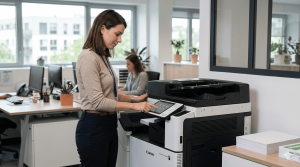
The 3 first steps to take immediately
Before looking for a complex cause, you should always start with three basic checks. These steps are quick, require no particular technical skill and resolve a very large part of printer problems, especially when the device no longer responds, is not detected or refuses to print for no apparent reason.
Check the power supply
It seems obvious, but it is one of the first causes of an apparent breakdown. A printer can seem out of service simply because a cable is poorly connected, a power strip is faulty or the power supply is not working correctly.
- Check the power cable at the socket end and the printer end
- Make sure the power button has actually been pressed
- Test the electrical socket with another device
- Plug the printer directly into the wall if it is on a power strip
Restart the printer correctly
A full restart makes it possible to clear many temporary errors. You should not simply press the on/off button, but completely cut the power for a few seconds.
- Turn off the printer
- Unplug the power cable
- Wait at least 30 seconds
- Plug the device back in and switch it on
Check the connection with the computer
If the printer turns on correctly but nothing comes out, you often need to look at the connection. The problem may come from a poorly connected USB cable, an unstable Wi-Fi or a disconnected network cable.
- Over USB: test another port or another cable
- Over Wi-Fi: make sure the printer and the computer are on the same network
- Over Ethernet: check the network lights and that the cable is properly inserted
✅ Good reflex
Run a test print after each step. This makes it possible to identify the right fix very quickly without wasting time.
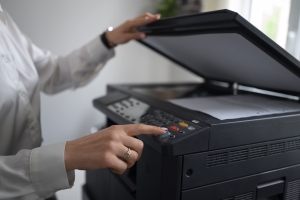
Printer that turns on but does not print: the most common causes
This is probably the most common scenario: the printer seems to be working, the screen is on, no electrical problem is visible, but printing does not start. In this situation, the problem rarely comes from a heavy fault. It is most often a software blockage, a consumable, a jam or a setting poorly recognised by the computer.
Here are the causes to check first when the printer refuses to print even though it appears to be ready.
Don’t forget offline mode
On Windows in particular, the printer may switch to offline mode even though it is properly switched on. Check this point in the print queue before going any further.
HP printer breakdown: the specific steps
HP printers are very widespread, both in business and at home. When an HP printer breaks down, certain simple procedures often make it possible to fix the problem quickly without dismantling or complex intervention. HP also provides fairly effective reset tools and methods for the most common blockages.
Carry out a power reset
Leave the printer switched on, unplug the power cable, wait about 60 seconds then plug it back in. This operation is often enough to clear a temporary error or a start-up blockage.
Reset the network settings
If the HP printer no longer connects to Wi-Fi, restoring the network settings from the machine’s screen often makes it possible to start again with a clean configuration.
Use HP Print and Scan Doctor
This free Windows tool makes it possible to automatically diagnose connection, driver and print queue problems. It is often very useful when the problem is not immediately identifiable.
📌 Remember the model number
For an effective search on HP support, always note the exact model of the printer. It is the basis for downloading the right driver or the right troubleshooting procedure.
When should you really call a professional?
Some printer faults go beyond the scope of simple user troubleshooting. When several logical attempts have been made without success, you should consider a hardware failure. In this case, persisting can sometimes make the problem worse or waste precious time, especially in a professional context.
Signs that you should stop troubleshooting alone
CRITICAL
- The printer no longer turns on at all
- A burning smell or a smell of hot plastic appears
- An abnormal mechanical noise can be heard
- An error code persists despite several restarts
- The print quality remains very poor despite changing the cartridge
- You have applied all the simple solutions without result
In this type of situation, the fault may come from a worn print head, a faulty motor, a fusing unit to be replaced or a damaged electronic component. These repairs require suitable parts and the intervention of a qualified technician.
🛠️ Service4Print
Our technicians intervene quickly throughout France to diagnose your printer, estimate the repair and tell you whether it is better to repair or replace the device. See the article: when to replace a faulty photocopier
Frequently asked questions

Find the best deal for your professional copier, free of charge and as quickly as possible.
I want a quote