My Canon printer won’t turn on: diagnosis and solutions
Is your Canon printer no longer turning on? 90% of cases are resolved in under 5 minutes by checking three points: the power supply, the cable and the power button. If, after a full reset, no light comes on, you need to call in a professional. Service4Print offers a free diagnosis within 24 hours.
Introduction
It’s frustrating: you press the button and nothing happens. Your Canon printer stays silent. Before throwing it away or calling a repairer, you should know that the majority of “printer won’t turn on” faults are due to simple problems: a poorly connected plug, a faulty cable, or a necessary reset.
This guide shows you exactly what to check, and in what order, to diagnose the problem and resolve it yourself. The solutions also apply to HP, Epson and Brother printers.

Quick diagnosis: 3 points to check BEFORE panicking
Before dismantling anything, start with these three basic checks. They eliminate 80% of false problems.
1. Checking the power supply
This is the first thing to check, and often the solution.
Checklist:
- Is the wall socket working? (Plug in a lamp or a phone to test)
- Is the power cable firmly inserted into the printer?
- Is the power cable firmly inserted into the wall socket?
- Is the printer’s rear switch in the ON position?
- Is there an emergency stop button pressed in (on some models)?
Interpreting the lights:
- No light = No power (faulty cable, socket or circuit board)
- Steady green light = Printer on and ready
- Flashing orange light = Standby mode or minor error
- Red light = Serious error (paper jam, out of ink, etc.)
2. Checking the power cable
If the socket works but the printer does not turn on, the cable may be faulty.
Visual inspection:
- Does the cable show any cracks, burns or flattened areas?
- Are the connectors oxidised or blackened?
- Is the cable bent at a right angle (risk of internal break)?
Practical test:
- Unplug the cable and wait 30 seconds
- Plug it back in firmly (you should feel a click)
- If nothing changes, try with another compatible power cable
3. Checking the power button
The button may be stuck or faulty.
Test:
- Press the power button firmly 5 times
- Listen for a mechanical click (a sign that the button works)
- Wait 10 seconds after each press
- If there is no click = faulty button (professional intervention required)
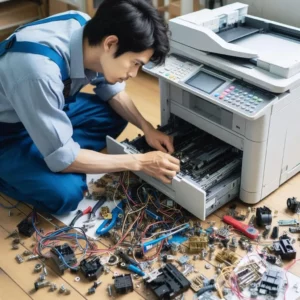
Solution 1: Full reset (15 seconds) — 70% success rate
The reset reinitialises the circuit board and often resolves software problems.
Steps:
- Turn off the printer by pressing the power button
- Unplug the power cable from the wall socket
- Wait 30 seconds (this drains the capacitors on the circuit board)
- Plug the cable back in and press the power button
Expected result:
- The lights flash rapidly (this is normal, it is the start-up)
- After 10-15 seconds, a steady green light comes on
- The printer emits a beep or a start-up sound
If nothing happens, move on to the next solution.
Solution 2: Checking the power cable (advanced test)
If the reset changed nothing, the cable may be faulty even if it appears intact.
In-depth visual inspection:
- Check both ends of the cable (wall socket and printer connector)
- Look for burn marks, even slight ones
- Make sure the connector is not bent
Test with another cable:
- Borrow a compatible power cable (same voltage, same connector)
- Plug it into the printer
- Press the power button
Test with another socket:
- Plug the printer into a different socket (ideally in another room)
- Test with a socket without a power strip or extension lead
- Faulty power strips can also cause this problem
Solution 3: Checking the power button
The button may be blocked by dust or electrically faulty.
Cleaning the button:
- Press the power button firmly 10 times
- Listen carefully for a mechanical click
- If you hear a click but nothing happens = electronic problem (faulty board)
- If you hear no click = button stuck or broken
If the button is stuck:
- Turn off the printer
- Use a slightly damp cotton bud to clean around the button
- Let it dry for 5 minutes
- Test again
Solution 4: Full software reset
Some Canon models allow a deeper reset via the menu.
Procedure with a touchscreen:
- Press the power button to turn on the printer
- Go to Menu → Settings → Maintenance → Reset
- Confirm with OK
- The printer restarts automatically
Procedure without a screen (STOP/RESET button):
- Turn off the printer
- Hold the STOP (or RESET) button pressed for 10 seconds
- Release it
- Press the power button
Note: This procedure varies depending on the Canon model. Consult the manual if you cannot find these buttons.
Solution 5: Checking the circuit board
If none of the previous solutions worked, the circuit board may be damaged.
Signs of visible damage:
- Black or brown burn marks on the board
- Swollen or cracked components
- A burning smell when you plug in the printer
- Liquid or corrosion on the board
To access the board:
- Consult your printer’s manual (the “Maintenance” section)
- Always unplug the printer before opening the casing
- Take a photo before dismantling (to remember the assembly)
Multimeter test (for advanced users):
- Measure the voltage between the pins of the power connector
- You should get 24V or 48V depending on the model
- If the voltage is 0V = faulty cable or connector
- If the voltage is correct but the printer does not turn on = faulty circuit board
Solution 6: When to call a professional
If you have followed all the previous steps and the printer still won’t turn on, it’s time to call in an expert.
Signs that professional intervention is required:
- ✗ After a reset, no light comes on
- ✗ The cable is damaged (burnt, broken)
- ✗ An error code persists after restarting (e.g. P02, P03, 5100)
- ✗ You heard an abnormal noise (explosion, cracking) before the fault
- ✗ The printer has been exposed to water or moisture
Why call on Service4Print:
- Free diagnosis within 24 hours: we identify the exact problem
- Rapid intervention: repair within 48 hours on average
- 6-month warranty: peace of mind after the repair
- All brands: Canon, HP, Epson, Brother, Xerox, Ricoh, etc.
- Original parts: we use only certified parts
👉 Request a free diagnosis or Call Service4Print on 09 84 24 04 99
FAQ — Frequently asked questions
Q1: Why won’t my printer turn on from one day to the next?
Answer: The most common causes are:
- Power cut: a power surge has damaged the circuit board
- Faulty cable: gradual internal break in the power cable
- Stuck button: build-up of dust or mechanical failure
- Software update: an interrupted update can block start-up
Start with a full reset (unplug for 30 seconds). If that doesn’t work, test with another cable.
Q2: How can I tell if my printer is really dead?
Answer: Your printer is probably dead if:
- No light comes on after a reset
- You have tested with 2 different cables and 2 different sockets
- You heard an abnormal noise (explosion, cracking) before the fault
- The circuit board shows visible burn marks
In these cases, a professional repair is required. Contact Service4Print for a diagnosis.
Q3: How much does a printer repair cost?
Answer: The cost depends on the problem:
- Faulty cable: €30-80 (part + labour)
- Power button: €50-120
- Circuit board: €150-400 depending on the model
- Diagnosis: free at Service4Print
Service4Print also offers maintenance contracts that cover repairs. Request a personalised quote.
Q4: Should I repair or replace my printer?
Answer: Repair if:
- The printer is less than 5 years old
- The repair cost is < 40% of the price of a new one
- It is a professional model (more durable)
Replace if:
- The printer is more than 7 years old
- The repair cost is > 50% of the price of a new one
- Several faults in 2 years (a sign of ageing)
Service4Print can also offer you a printer rental during the repair, so as not to interrupt your activity.
Q5: Can you repair a printer yourself?
Answer: Yes, for simple problems:
- ✅ Check the power supply and the cable
- ✅ Clean the power button
- ✅ Do a full reset
- ✅ Clear a paper jam
No, for complex problems:
- ✗ Replace the circuit board
- ✗ Repair the power cable
- ✗ Replace the motor or the rollers
- ✗ Repair water damage
Risk: you could damage the printer further or electrocute yourself. It is better to call a professional.
If you need help:
- 📞 Call Service4Print: free diagnosis within 24 hours
- 📧 Send an email: describe the problem with a photo
- 💬 Chat with us: response in under 2 hours
- 🔧 Request an intervention: technician at your premises within 48 hours
Service4Print is the trusted printing partner for businesses. We have been repairing, maintaining and renting professional printers for more than 15 years.
👉 Request a free diagnosis now
Useful sources

Find the best deal for your professional copier, free of charge and as quickly as possible.
I want a quote